
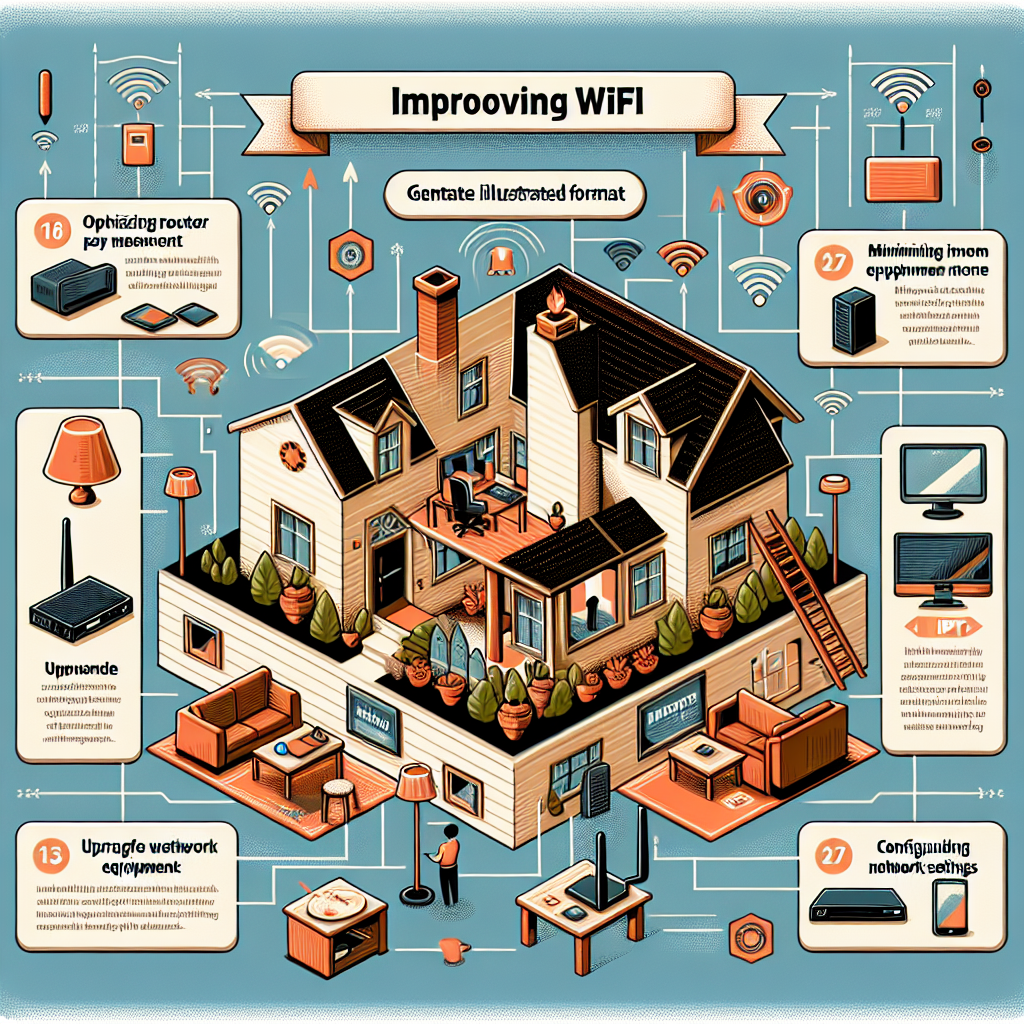
Understanding How to Improve WiFi for IPTV
Many Canadians search for practical ways to stream smoothly, and learning how to improve WiFi for IPTV is one of the most important steps. Buffering, lag, and channel freezing usually come from issues with internet stability, not the IPTV service itself. The good news is that most WiFi problems can be solved with the right setup, a few equipment upgrades, and some smart placement strategies.
This guide explains everything you need to know, including what causes poor WiFi for IPTV, how to optimize your home network, and which devices give you the best results. Whether you use an Android TV box, a Firestick, or a Smart TV, you’ll find helpful solutions tailored to real Canadian households.
Why WiFi Performance Matters for IPTV Streaming
IPTV streams live TV channels, movies, and sports in real time. Unlike downloaded content, IPTV relies on a continuous, stable internet connection. If your WiFi signal weakens or fluctuates, even briefly, you may experience buffering, pixelation, or audio dropouts.
A strong connection ensures clean HD and 4K playback, especially when multiple devices in your home are competing for bandwidth.
Common WiFi Problems That Affect IPTV
Before learning how to improve WiFi for IPTV, it helps to understand what might be slowing it down in the first place. The issues below are the most common causes of IPTV streaming interruptions.
Weak Signal Strength
Walls, floors, and appliances can block WiFi signals. The farther your device is from the router, the more the signal deteriorates.
Interference from Other Electronics
Microwaves, baby monitors, Bluetooth devices, and even neighbouring WiFi networks can interfere with your signal, especially on the 2.4 GHz frequency.
Outdated Router Hardware
If your router is more than four or five years old, it may not support modern WiFi standards needed for smooth 4K IPTV streaming.
Too Many Connected Devices
Smartphones, tablets, laptops, gaming systems, and smart home gadgets all use bandwidth. Even background updates can slow down IPTV performance.
Internet Plan Not Fast Enough
While IPTV does not require extremely high internet speed, insufficient bandwidth—especially during peak evening hours—can cause issues.
How to Improve WiFi for IPTV: Actionable Tips
Now let’s look at the most effective solutions. These techniques come from real-world experience and are proven in Canadian homes where WiFi challenges are common.
1. Place Your Router in the Best Location
Where you put your router matters more than most people realize. Proper placement can instantly improve your IPTV signal.
- Keep the router in a central location
- Avoid placing it on the floor or inside cabinets
- Raise it on a shelf for better coverage
- Keep it away from electronics that generate interference
A general guideline is to maintain a clear line of sight between the router and the IPTV device whenever possible.
2. Switch to the 5 GHz WiFi Band
The 2.4 GHz band is crowded. It travels farther but is more prone to interference. The 5 GHz band has faster speeds and performs better for IPTV.
To switch, simply connect your IPTV device to the network name ending in “5G” or “5GHz.”
3. Use Ethernet Instead of WiFi When Possible
For the best IPTV streaming, a wired Ethernet connection is unmatched. It eliminates interference entirely and offers the full speed of your internet plan.
If your router is far away, consider using:
- Powerline Ethernet adapters
- MoCA adapters (for homes with coaxial lines)
These can deliver near‑wired performance without running long cables through your home.
4. Upgrade to a Modern Router
Old routers often cannot handle multiple devices, HD streaming, and modern WiFi standards. Upgrading to a WiFi 6 or WiFi 6E router can dramatically improve IPTV stability.
Features to look for:
- Beamforming technology
- Dual‑band or tri‑band support
- Good processor and RAM
- Quality of Service (QoS) controls
5. Use a Mesh WiFi System for Larger Homes
A mesh system creates consistent coverage across multiple rooms. It’s perfect for multi‑story homes, condos with thick walls, or devices far from the main router.
Mesh systems use satellite nodes positioned around your home to eliminate dead zones and keep IPTV streaming smooth.
6. Limit the Number of Connected Devices
If too many devices are connected, bandwidth gets divided. Temporarily turn off or disconnect unused devices when streaming IPTV.
Some routers let you assign streaming traffic as a priority via QoS settings. This ensures IPTV receives stable bandwidth even during heavy usage.
7. Update Firmware on Your Router and IPTV Device
Manufacturers regularly release updates that improve speed, security, and stability. Updating your router’s firmware can fix hidden issues and boost performance.
8. Optimize Your IPTV Device
The quality of your IPTV device matters. Some devices handle WiFi better than others. For example, newer Android TV boxes and high-end streaming sticks often perform better than older Smart TVs with outdated WiFi chips.
You can explore recommended options in guides such as the list of best devices for IPTV in 2025, which highlight top performers for speed and stability.
9. Use the Best IPTV Apps for Smooth Streaming
The app you use can also influence performance. Some IPTV apps are better optimized for HD and 4K streaming, especially on Android devices.
If you want recommendations, check resources like the list of best IPTV apps for Android in 2025, which compares app performance and compatibility.
10. Choose a Reliable Internet Provider
Even with perfect WiFi, poor ISP performance can cause buffering. Internet providers vary widely in speed stability, especially in rural areas.
If needed, review comparisons of the best internet providers in Canada for IPTV to find an option with better uptime and consistency.
Recommended Internet Speeds for IPTV
Your IPTV stream depends on both speed and stability. Below is a quick reference for recommended speeds.
| Stream Quality | Minimum Speed | Ideal Speed |
|---|---|---|
| HD (720p / 1080p) | 10 Mbps | 25 Mbps |
| Full HD Sports | 15 Mbps | 30 Mbps |
| 4K Streaming | 25 Mbps | 50 Mbps+ |
These numbers assume only one IPTV device streaming at a time. If other devices share the network, increase the total bandwidth accordingly.
How to Check Your Current WiFi Performance
Testing your WiFi helps you pinpoint weak areas. Run speed tests in the same room as your IPTV device to compare performance with your plan’s advertised speed.
Steps to check your WiFi quality
- Run a speed test using a browser or app
- Compare results to your subscribed speed
- Check for high ping or latency
- Move closer to the router and test again
- Test on the 5 GHz band if available
If your speed drops significantly when you move away from the router, you likely need better placement, a mesh system, or a WiFi extender.
Advanced WiFi Optimization for IPTV
For users who want expert‑level performance, these adjustments can fine‑tune your home network.
Manually Changing WiFi Channels
Neighbouring networks may overlap with your router’s channel. Switching channels reduces interference and improves stability.
Enabling Quality of Service (QoS)
QoS lets you prioritize IPTV traffic over other devices. This ensures smooth playback even during large downloads or gaming sessions.
Disabling Unnecessary Features
Features like guest networks, WPS, or smart home tracking may occupy router resources. Disabling unused features can lighten the load.
Best Devices to Improve WiFi for IPTV
If you want to maximize WiFi reliability, certain equipment upgrades offer excellent performance gains.
WiFi 6 Routers
These routers provide better speed, coverage, and device management than older WiFi standards.
Powerline or MoCA Adapters
These are excellent options for homes with thick walls or multiple floors where WiFi alone is not strong enough.
Modern Streaming Boxes
High‑quality IPTV boxes have stronger WiFi antennas and faster processors. If you are looking for top-tier performance, consider browsing updated lists of the best Android TV boxes for IPTV, such as the guide at best Android TV boxes for IPTV.
Troubleshooting: IPTV Still Buffering?
If you still experience buffering even after optimizing your WiFi, use the checklist below to find the cause.
- Test a wired connection (if improved, the issue is WiFi-related)
- Switch to a different IPTV app
- Restart router and IPTV device
- Try streaming at a different time of day (ISP congestion)
- Lower the stream quality temporarily
- Check if other devices are downloading large files
These steps help identify whether the problem is local to your WiFi or related to bandwidth or device limitations.
Frequently Asked Questions About Improving WiFi for IPTV
Does IPTV require fast internet?
Not necessarily. IPTV needs stable internet more than fast internet. Many HD streams work perfectly with 10–15 Mbps as long as the connection is consistent.
Is WiFi or Ethernet better for IPTV?
Ethernet is always more stable. However, optimized 5 GHz WiFi can still deliver excellent results, especially with modern routers.
Does a VPN affect IPTV performance?
VPNs can reduce speed on some routers. If you use a VPN, choose a fast server close to your location.
Conclusion: Mastering How to Improve WiFi for IPTV
Learning how to improve WiFi for IPTV is one of the best ways to enjoy smooth, uninterrupted streaming. With strong WiFi, a reliable IPTV device, and a stable internet provider, you can eliminate buffering and enjoy your favourite channels worry-free.
From router placement to upgrading your streaming hardware, small improvements can make a big difference. Whether you use WiFi, Ethernet, or mesh systems, the techniques in this guide will help you build a fast and reliable IPTV setup tailored to Canadian homes.
By applying these steps, you now know how to improve WiFi for IPTV and create the best streaming experience possible for 2025 and beyond.