Introduction: How to Install IPTV on Android Phones & Tablets in 2025
As IPTV continues to grow across Canada, more viewers want a simple and reliable way to watch live channels and on‑demand content on their mobile devices. Knowing how to install IPTV on Android phones & tablets gives you the freedom to stream anywhere, whether you’re at home, commuting, or travelling. This guide walks you through every step, from choosing an IPTV app to configuring your playlist, troubleshooting issues, and optimizing performance for smooth viewing.
This detailed tutorial is written for beginners and experienced users alike. If you’re looking for a clear explanation of how to install IPTV on Android phones & tablets, you’re in the right place.
What You Need Before Installing IPTV on Android Devices
Before you begin the installation process, it’s important to gather a few essentials. These ensure that your IPTV service runs smoothly and performs at its best.
1. A Stable Internet Connection
IPTV uses internet bandwidth, so your speed directly affects image quality and stability. Most providers recommend at least 20 Mbps for HD streaming and 40+ Mbps for 4K. If you want to improve your connection, you can explore the best internet providers in Canada for IPTV to ensure you’re using a suitable plan.
2. An Android Phone or Tablet
You need a device running Android 7.0 or newer. Almost all modern devices meet this requirement. Flagship phones and tablets tend to provide smoother playback thanks to better processors and RAM.
3. An IPTV Subscription
Most IPTV apps do not include channels by default. You need a subscription from a service provider that gives you either an M3U link, an Xtream Codes login, or a Stalker/MAG portal URL.
4. A Compatible IPTV App
Android supports many IPTV apps, each with unique features. We will cover the most reliable ones later in this guide. You can also review the best IPTV apps for Android in 2025 to compare additional options.
Step-by-Step: How to Install IPTV on Android Phones & Tablets
Here is the complete process, explained in easy-to-follow steps. Whether you prefer downloading apps from Google Play or installing APK files manually, both methods are covered.
Step 1: Choose Your IPTV App
The first step is selecting an app that suits your needs. Some apps offer advanced features like catch-up TV, EPG guides, customizable layouts, and multi-device sync. Others focus on simplicity for beginners. Below are a few popular choices in 2025:
- IPTV Smarters Pro
- TiviMate IPTV Player
- XCIPTV Player
- Perfect Player
- OTT Navigator
Each of these apps works well with IPTV playlists and login formats commonly offered in Canada.
Step 2: Download the IPTV App
You can install your chosen IPTV app in two ways:
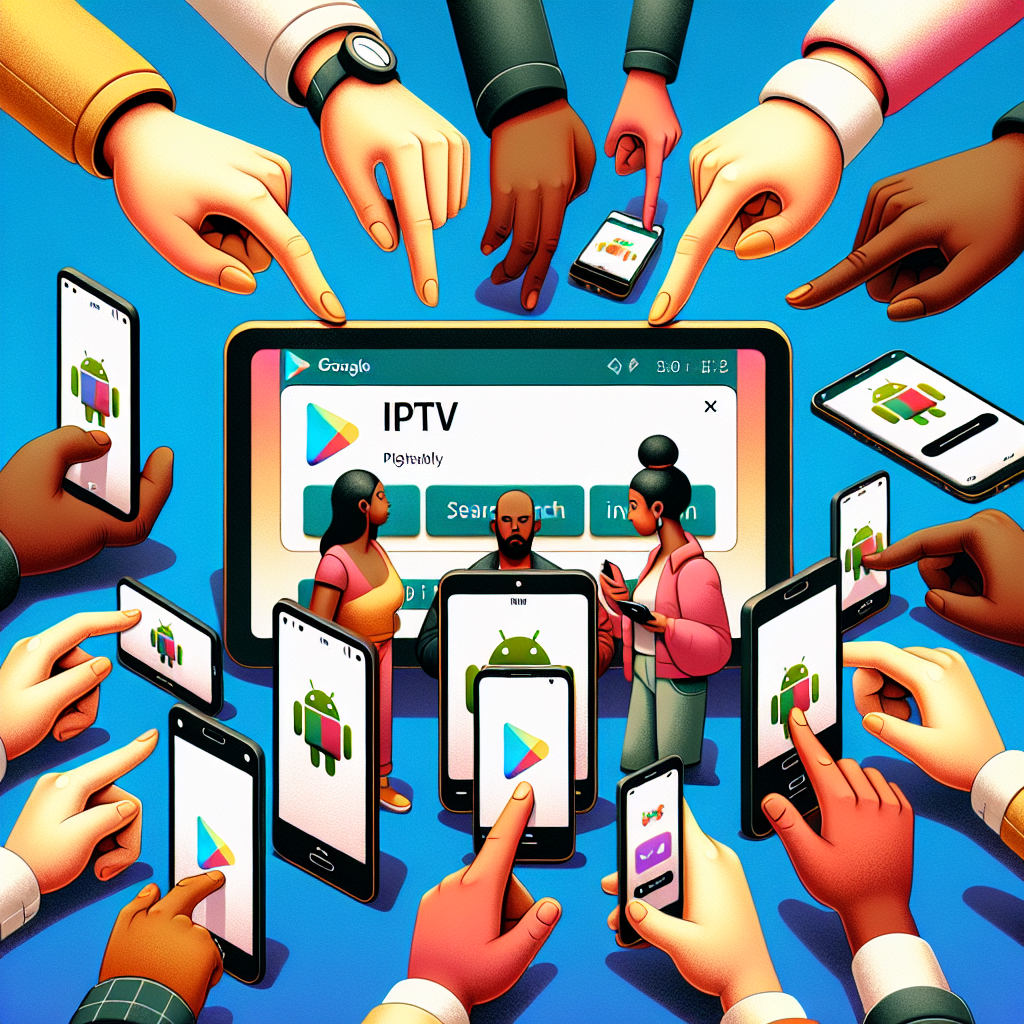
Option A: Install from Google Play Store
- Open the Google Play Store.
- Search for the IPTV app you selected.
- Tap Install.
- Wait for the download to complete.
This is the simplest and safest method because apps from Google Play are scanned for security issues.
Option B: Install via APK File
If the IPTV app is not available on Google Play, you can download the APK version from the app’s official website.
- Open your browser and go to the app developer’s official site.
- Download the APK file.
- Go to Settings → Security.
- Enable Install Unknown Apps for your browser.
- Open the downloaded APK file and tap Install.
Always ensure that you only download APKs from trusted sources.
Step 3: Open the IPTV App
Once installed, open the IPTV app from your home screen or app drawer. The interface may vary, but most apps will prompt you to add your IPTV login details.
Step 4: Add Your IPTV Playlist or Login
IPTV apps typically accept three types of login formats:
- M3U Playlist URL: A link provided by your IPTV service.
- Xtream Codes API: Includes username, password, and server URL.
- Portal URL (MAG Method): Used in Stalker/MAG-based services.
Adding an M3U Playlist
- Open your IPTV app.
- Tap Add Playlist or Add New User.
- Select M3U Link.
- Paste your playlist URL.
- Save and refresh the playlist.
Adding Xtream Codes Details
- Select Xtream Codes Login in your app.
- Enter the server URL, username, and password provided by your IPTV service.
- Tap Login.
Adding Portal URL
- Choose Add Portal or Portal Login.
- Enter your portal URL.
- Save and reload.
Popular IPTV Apps for Android Explained
Now that you know the basic setup process, let’s explore some apps in more detail to help you choose the right one.
IPTV Smarters Pro
IPTV Smarters Pro is one of the most user-friendly apps available. It supports all login types and offers a clean interface for navigating channels and on-demand content.
TiviMate IPTV Player
TiviMate is popular for its polished design and advanced features. It’s ideal for power users who want a premium experience. While the free version works well, the paid version unlocks multi-device sync and personalized layouts.
XCIPTV Player
This player is lightweight and fast, making it great for older Android devices. It supports EPG, catch-up TV, and picture-in-picture mode.
Perfect Player
Perfect Player offers a minimalist design with strong performance. It’s ideal for users who prefer a simple and fast app.
How to Optimize IPTV Performance on Android
Even with a good IPTV app, you may experience freezing, buffering, or quality drops. Here are proven tips to improve your experience.
1. Use 5 GHz Wi‑Fi Instead of 2.4 GHz
A 5 GHz Wi‑Fi connection offers faster speeds and less interference, which helps IPTV run smoothly.
2. Reduce Background Activity
Close apps running in the background to free RAM and processing power. This reduces lag and improves streaming quality.
3. Keep Your App Updated
Developers release new updates to fix bugs, improve performance, and enhance compatibility. Always update your IPTV apps through Google Play or the official website.
4. Check Your IPTV Provider Quality
If you experience constant buffering even with a good internet connection, your provider may be the issue. Consider exploring alternatives or reading reviews.
5. Enable Hardware Acceleration
Many IPTV apps include an option to enable hardware decoding in the settings. This uses your device’s GPU to improve video playback.
How to Use External Players for Better IPTV Quality
Some IPTV apps allow you to choose an external video player for enhanced stability. VLC and MX Player are two of the most reliable choices.
Benefits of Using External Players
- Better codec support
- Improved performance on older devices
- Smoother playback for high‑bitrate channels
- Fewer freezing issues
How to Add an External Player
- Install VLC or MX Player from Google Play.
- Open your IPTV app.
- Go to Settings → Player.
- Select your external player.
Safety Tips: Staying Secure While Using IPTV on Android
IPTV apps and playlists may expose you to online risks. Protect your device and privacy by following these tips.
1. Avoid Unknown Sources
Only download APK files from trusted developer websites. Avoid random download sites, as they may contain malware.
2. Use a VPN
A VPN can help protect your privacy by encrypting your connection. Many Canadian users choose VPNs for secure streaming.
3. Disable Install Unknown Apps After Installation
Once you finish installing the APK, disable unknown apps permissions to keep your device secure.
4. Update Your Device Regularly
Security patches from Android protect you from vulnerabilities that spyware, viruses, or malicious apps may exploit.
How to Troubleshoot IPTV Problems on Android Phones & Tablets
Even the best IPTV setups sometimes encounter issues. Below are common problems and quick solutions.
Problem 1: IPTV Keeps Buffering
- Switch to a 5 GHz Wi‑Fi network.
- Restart your router.
- Disable VPN temporarily to test speed.
- Lower the stream quality from 4K to HD.
Problem 2: Channels Not Loading
- Refresh your playlist inside the IPTV app.
- Re-enter your M3U or Xtream login.
- Check if your provider’s server is down.
Problem 3: EPG Guide Not Working
- Update the EPG URL provided by your IPTV service.
- Clear cache inside your IPTV app settings.
- Reload channels.
Problem 4: App Crashing or Freezing
- Update the app to the latest version.
- Clear cache and data.
- Reinstall the app entirely.
Recommended Devices for Watching IPTV on Android
While this guide focuses on mobile devices, many Canadians prefer using Android TV boxes for a bigger screen experience. If you want to improve your setup, check out the best devices for IPTV in 2025 to explore powerful streaming options that enhance playback quality.
How to Install IPTV on Android Tablets vs Phones
Tablets offer a larger display, making them more enjoyable for watching live TV and movies. However, the installation process is the same as on phones.
Advantages of Using IPTV on Tablets
- Better viewing experience thanks to larger screens.
- More powerful hardware in many tablet models.
- Longer battery life compared to smartphones.
Advantages of Using IPTV on Phones
- Portability and convenience.
- Can stream anywhere in Canada.
- Perfect for sports, news, and short entertainment sessions.
Advanced Tips for Power Users
If you want to get the most out of your IPTV service, consider these advanced techniques:
1. Create Multiple Profiles
Some IPTV apps let you create multiple user profiles. This is ideal for families who want personalized channel lists and favourites.
2. Custom EPG Sources
You can import custom EPG URLs for more accurate program information. This is especially helpful for international channels.
3. Organize Channels into Groups
Most apps let you categorize channels into custom groups such as Sports, Movies, Kids, or Local News. This makes navigation easier.
4. Sync Playback Across Devices
Premium apps like TiviMate offer multi-device syncing so you can continue watching on your TV or Android TV box seamlessly.
Should You Use Free IPTV Apps?
Free IPTV apps exist, but they often have limitations such as unstable servers, missing channels, or poor video quality. They may also contain intrusive ads. Paid IPTV services usually deliver better reliability and channel selection.
Frequently Asked Questions
Is it legal to install IPTV on Android in Canada?
Installing an IPTV app is legal. The legality depends on the IPTV provider and whether they have rights to broadcast the channels they offer.
Do I need a special device to use IPTV on Android?
No. Any modern Android phone or tablet works, as long as you have a stable internet connection.
Can I use the same IPTV subscription on multiple devices?
Some providers allow multi-device access, while others limit usage. Check with your service provider.
Does IPTV consume a lot of data?
Yes. HD streaming may use around 3 to 4 GB per hour. 4K content uses even more.
Conclusion: Final Tips on How to Install IPTV on Android Phones & Tablets
Learning how to install IPTV on Android phones & tablets is straightforward once you understand the steps. Choosing the right app, adding your IPTV playlist, and optimizing your internet connection makes a world of difference in viewing quality. Whether you prefer watching on your smartphone while on the move or enjoying movies on a tablet, IPTV offers flexibility and control over your entertainment.
Now that you know exactly how to install IPTV on Android phones & tablets, you can enjoy a smooth, high-quality streaming experience tailored to your preferences in 2025 and beyond.