Introduction: How to Install IPTV on LG Smart TV in 2025
If you want to learn how to install IPTV on LG Smart TV, this guide will walk you through every step in a clear, beginner-friendly way. Whether you live in Canada or simply use an LG TV running webOS, the installation process is straightforward when you know which IPTV apps to use and how to configure your subscription.
LG Smart TVs remain one of the most popular options for IPTV streaming thanks to their smooth interface and access to IPTV-compatible apps in the LG Content Store. In this guide, you will learn the easiest installation methods, the best apps to choose, and troubleshooting tips to ensure a stable and reliable viewing experience.
What You Need Before Installing IPTV on LG Smart TV
Before diving into setup, make sure you have the following essentials ready:
- An LG Smart TV running webOS 3.0 or newer
- A stable internet connection (at least 25 Mbps recommended)
- An IPTV subscription with M3U, Xtream Codes, or portal URL access
- An IPTV app available in the LG Content Store
For the best experience, Canadian viewers may also want to check trusted recommendations for the best internet providers for IPTV in Canada, especially if you plan to watch 4K channels or live sports.
Best IPTV Apps for LG Smart TV
LG’s webOS does not support Android APK installations. This means you must rely on IPTV apps available through the LG Content Store. Fortunately, several well-known IPTV clients work well on LG Smart TVs.
1. IPTV Smarters Pro
IPTV Smarters Pro is one of the most widely used IPTV apps worldwide. It supports Xtream Codes API, M3U playlists, and EPG URLs. Its interface is clean and suitable for beginners.
2. Smart IPTV (SIPTV)
Smart IPTV is a paid application that allows easy playlist uploads through its website. It is known for stability and simple navigation. Users often appreciate its quick loading times and responsive menus.
3. DuplexPlay
DuplexPlay supports video-on-demand playlists, live channels, and series. It’s lightweight and works well on TVs with older webOS versions.
4. OTT Navigator (If Available in Your Region)
Some LG stores offer OTT Navigator. It’s powerful and highly customizable, but availability varies by region.
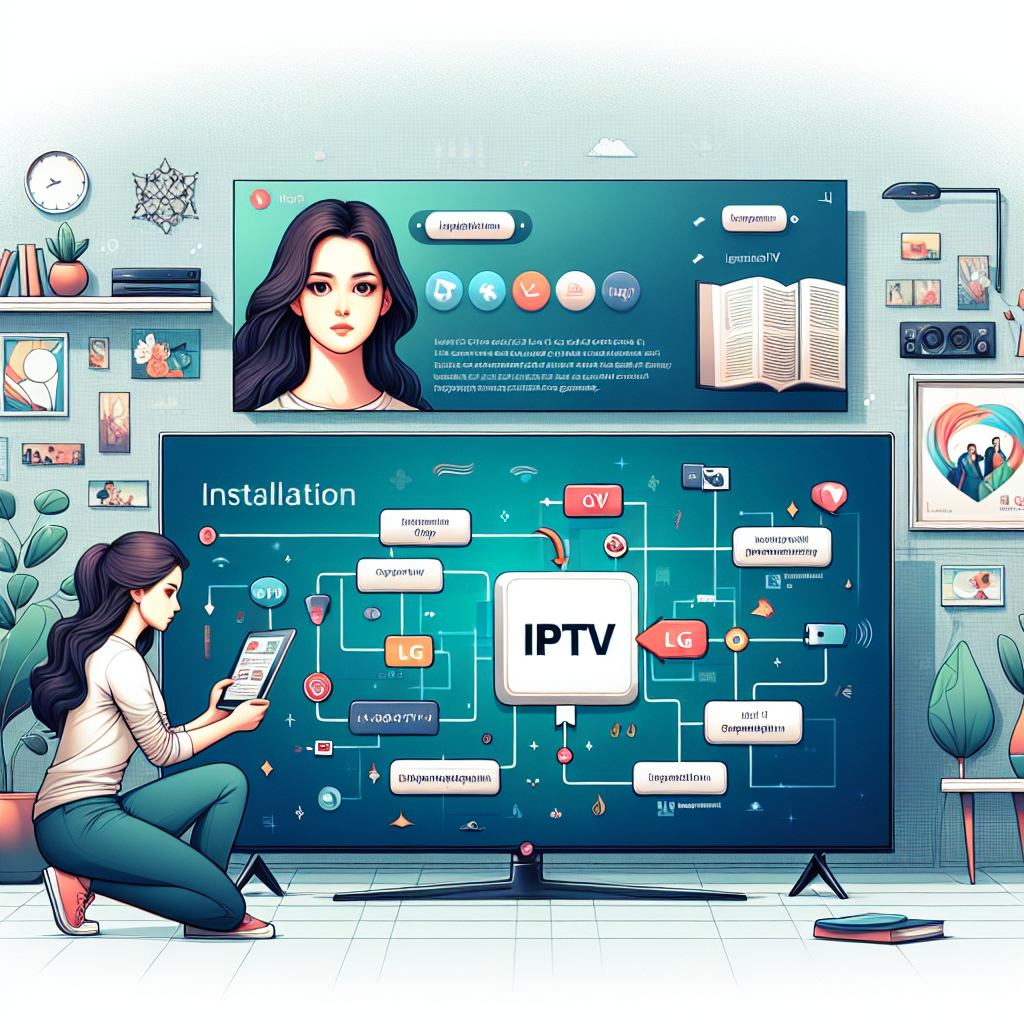
How to Install IPTV on LG Smart TV (Step-by-Step)
Now let’s go through the installation process. You will learn how to install IPTV apps, load your playlist, and optimize your playback settings for a smoother experience.
Step 1: Turn on Your LG Smart TV
Ensure your TV is connected to Wi‑Fi or Ethernet. Ethernet is always recommended for IPTV because it reduces buffering, especially during live sports or 4K streams.
Step 2: Open the LG Content Store
Navigate to the LG Content Store using the Home button on your LG remote. The store is usually located on the left side of your screen under the app list.
Step 3: Search for Your IPTV App
In the search bar, type the name of your preferred IPTV app. For example: IPTV Smarters Pro, Smart IPTV, or DuplexPlay.
Select the app from the results and click on the Install button.
Step 4: Open the IPTV App
Once installed, return to your home screen and open the IPTV app from your app list.
Step 5: Add Your IPTV Account Details
The exact fields may differ depending on the app. Most apps support these formats:
- M3U Playlist URL
- Xtream Codes API (Username, Password, URL)
- MAC Activation Method (Smart IPTV only)
If you use Xtream Codes API, your provider should supply the required details. Copy and paste them carefully to avoid login errors.
Step 6: Let the App Load Channels and EPG
After adding your IPTV details, the app will fetch channels, categories, movies, and the EPG (Electronic Program Guide). This may take several minutes depending on how large your playlist is.
Step 7: Start Streaming
You’re ready to enjoy IPTV on your LG Smart TV. Use your remote to navigate through channels, categories, and settings.
Alternative Method: Installing IPTV Through Casting or External Devices
If you want more app choices, you can install IPTV using an external streaming device connected via HDMI.
Best External Devices for IPTV
If you prefer maximum flexibility, devices like Android TV boxes or Amazon Firestick offer more IPTV app options. You can explore some of the best devices for IPTV in 2025 if you want access to apps that LG webOS does not support.
Using Screen Mirroring or Casting
You can also cast IPTV from your smartphone or tablet directly to your LG Smart TV. The effectiveness of this method depends on your network strength and the capabilities of your mobile device.
Recommended Settings for Smooth IPTV Playback
Once you know how to install IPTV on LG Smart TV, the next step is optimizing playback for the best possible experience.
1. Enable “Auto Frame Rate Match” (If Available)
This helps reduce stutter and screen tearing when switching between different FPS formats such as 24fps, 30fps, or 60fps.
2. Choose the Right Buffer Size
If your IPTV app allows buffer customization, consider:
- Small buffer for fast networks
- Medium buffer for moderately stable networks
- Large buffer for weaker Wi-Fi connections
3. Use Ethernet Instead of Wi‑Fi
For Canadian households using IPTV, Ethernet offers the most stable connection. If you cannot use Ethernet, ensure your TV is close to the router.
4. Select the Correct Decoder (Hardware vs Software)
Hardware decoding is often smoother and more efficient on LG smart TVs. However, if you notice glitches, switch to software decoding in your IPTV app settings.
Common IPTV Installation Problems and Solutions
It’s normal to experience small issues when setting up IPTV. Here are the most common ones and how to fix them quickly.
1. “Playlist Not Loading” Error
This happens when your M3U or API details are incorrect. Double-check spelling, spacing, and special characters.
2. Channels Buffering or Freezing
Possible causes:
- Your internet speed is below 25 Mbps
- Your Wi‑Fi signal is weak
- Your IPTV provider is congested
- Your app needs a boost in buffer size
3. Black Screen When Opening a Channel
This can be decoder-related. Switch from Hardware to Software decoding or vice versa.
4. EPG not loading
Make sure the EPG URL is added correctly and corresponds to your playlist.
Should You Use a VPN for IPTV on LG Smart TV?
While many Canadians use VPNs for privacy, LG Smart TVs do not support VPN apps natively. If you need a VPN, you can configure it on your router or use a streaming device like Firestick that supports VPN apps.
When to Use an External IPTV Device Instead of LG webOS
Although LG TVs handle IPTV well, some users find external devices more compatible with advanced apps. For example, if you prefer Android-based IPTV apps, check out this list of the best Android TV boxes for IPTV.
Is IPTV Legal in Canada?
IPTV technology itself is fully legal in Canada. What matters is whether the content provider has streaming rights. Always choose reputable services that comply with Canadian broadcasting rules.
How to Keep Your IPTV Running Smoothly
Once you know how to install IPTV on LG Smart TV, maintenance and optimization become important. Here’s how to keep your IPTV setup running smoothly for years.
1. Restart Your Router Weekly
This helps maintain a strong internet connection.
2. Update Your IPTV App
Many apps push stability improvements or bug fixes regularly.
3. Clear App Cache
Some apps allow cache clearing. This improves speed and reduces freezing.
4. Keep Your Playlist Clean
Massive playlists with thousands of channels load slower and increase CPU usage.
Advanced Tips for Power Users
If you want to take your IPTV experience further, these advanced tips will help you get the most out of your LG Smart TV.
Use Static DNS
Switching to DNS providers like Cloudflare (1.1.1.1) or Google DNS (8.8.8.8) may improve IPTV responsiveness.
Enable Ethernet Over Powerline
If your TV is far from your router, powerline adapters can provide a stable wired connection without running long cables.
Create Custom Channel Groups
Some IPTV apps allow you to organize channels into personal categories for faster navigation.
Conclusion: Final Thoughts on How to Install IPTV on LG Smart TV
Learning how to install IPTV on LG Smart TV is easier than many people expect. With the right app, correct playlist details, and a stable internet connection, your LG Smart TV becomes a powerful IPTV streaming device. Whether you choose IPTV Smarters, Smart IPTV, or another client, you now have the knowledge to set everything up quickly and efficiently.
As you continue streaming, remember to update your apps, optimize your settings, and consider enhanced devices if you want expanded features. With the steps and insights shared in this guide, you understand exactly how to install IPTV on LG Smart TV and how to keep your experience smooth and reliable.