
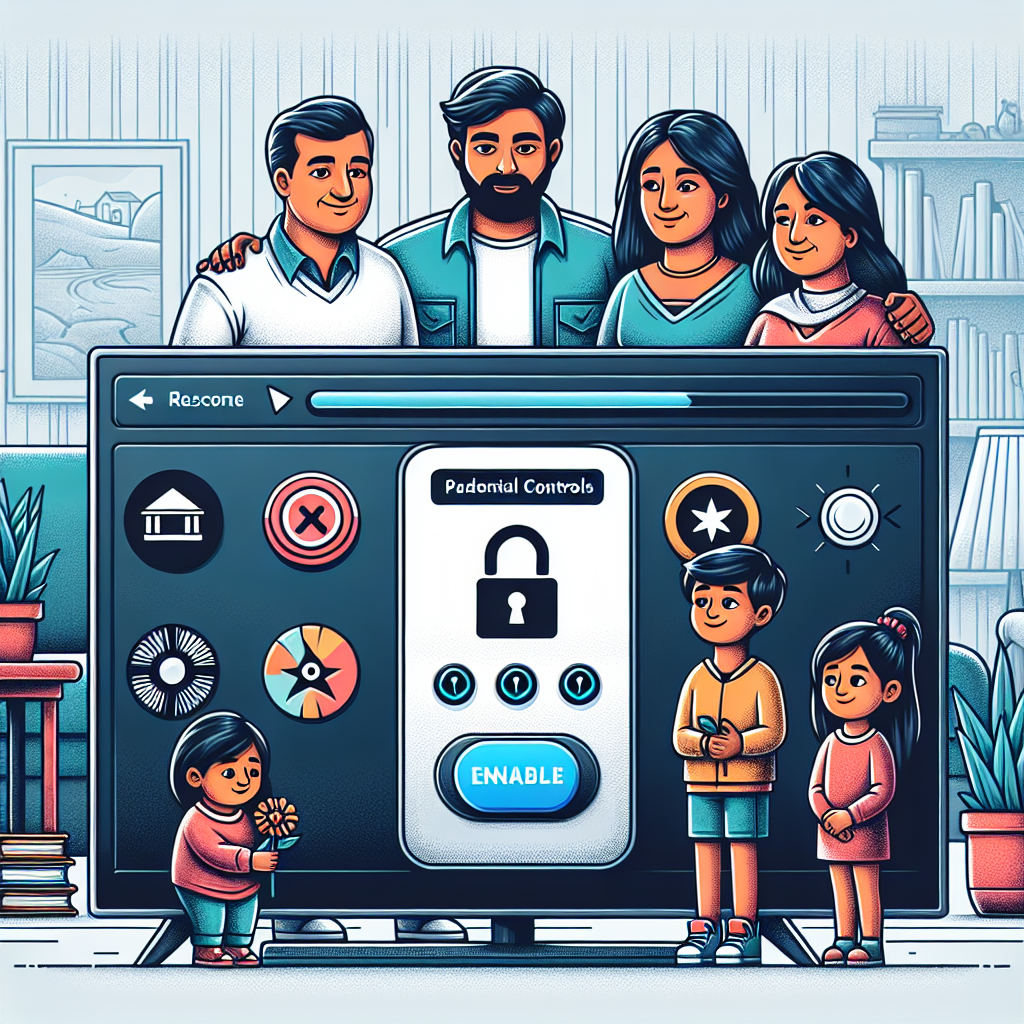
Understanding How to Use Parental Controls with IPTV
Knowing how to use parental controls with IPTV has become essential for Canadian households that want safe and supervised streaming experiences. IPTV services offer thousands of channels, movies, and on‑demand content, which brings incredible convenience and flexibility. However, that same breadth of content also means parents must take deliberate steps to prevent young viewers from accessing inappropriate content.
This guide explains everything you need to know. You will learn what parental controls are, why they matter, how to set them up on different IPTV apps and devices, and how to strengthen your child’s viewing safety over time. The goal is to help you create a balanced home entertainment ecosystem—one that’s fun for everyone and secure for children.
What Are Parental Controls and Why Do They Matter on IPTV?
Parental controls are digital tools that limit access to certain types of content. On IPTV platforms, they often restrict adult channels, hide categories, block apps, enforce pin codes, and manage screen‑time rules. Think of them as protective gates that help shape a healthy media environment.
Why IPTV Needs Strong Parental Controls
IPTV differs from traditional cable or satellite television. Instead of a fixed channel lineup with predictable ratings, IPTV streams content from multiple international sources. This means adult or mature categories sometimes appear by default. Without proper locks, children can reach content you may not approve of.
- IPTV apps offer thousands of channels, often uncensored and unfiltered.
- VOD libraries may include R-rated, MA-rated, or explicit content.
- Kids can easily browse categories out of curiosity or by accident.
- Households often share one IPTV subscription across multiple screens.
Using parental controls ensures that only age‑appropriate material is accessible, supporting peace of mind for parents and guardians.
Common Types of Parental Controls on IPTV Systems
While every IPTV provider is different, most offer similar tools. These include:
- PIN codes for restricted channels.
- Category hiding to prevent entire sections from appearing.
- Channel locking to block specific streams.
- VOD content restriction based on rating or category.
- Device‑level parental controls for apps, downloads, browsing, and screen time.
Understanding these tools is the first step toward mastering how to use parental controls with IPTV on any platform.
How to Use Parental Controls with IPTV on Different Devices
IPTV runs on many devices: Android TV, smartphones, tablets, Firestick, Smart TVs, and more. The process for enabling parental controls varies across platforms. Below is a full breakdown of how to activate these features on the most common devices used in Canadian households.
Using Parental Controls on Android TV
Android TV platforms, such as NVIDIA Shield or Chromecast with Google TV, offer both device‑level controls and IPTV‑app controls. Many Canadians use Android TV boxes because they support high‑performance apps. If you’re still choosing a device, you may want to explore the list of best devices for IPTV in 2025.
To set up parental controls:
- Open Settings on your Android TV.
- Select Device Preferences or System.
- Tap Parental Controls.
- Create a PIN.
- Select the type of content you want to restrict.
- Apply your preferences to specific IPTV apps.
This restricts app access and can limit video ratings for platforms that support Google’s built-in parental rating system.
Parental Controls on Android IPTV Apps
Most IPTV apps let you lock categories or channels directly. Although every interface is different, the steps generally include:
- Open your IPTV app menu.
- Go to Settings.
- Select Parental Control or Security.
- Create a 4 or 6‑digit PIN.
- Toggle which categories should be locked (often “Adult”, “XXX”, “18+”, or equivalent).
- Confirm your restrictions.
If you’re still evaluating which IPTV apps are easiest to manage, explore curated lists like the best IPTV apps for Android in 2025. Many of these apps include stronger parental control features than older platforms.
Using Parental Controls on Amazon Firestick
The Firestick is popular because it’s affordable, portable, and works with nearly all IPTV apps. Fire OS includes excellent parental controls built directly into the system:
- Go to Settings.
- Select Preferences.
- Choose Parental Controls.
- Set a PIN.
- Block app launches, purchases, or mature content ratings.
Once the PIN is active, any restricted IPTV app will require the code before opening. This safeguards younger viewers from unauthorized access.
Parental Controls on iPhone and iPad
If you use IPTV on iOS or iPadOS devices, Apple’s built‑in parental control system (Screen Time) offers advanced content filtering, website blocking, app limits, and privacy controls.
Here’s how to activate it:
- Open Settings.
- Tap Screen Time.
- Enable Restrictions.
- Create a PIN.
- Block specific apps, categories, and adult content.
This works well when children use tablets for streaming. If you need help installing IPTV on Apple devices, refer to guides such as how to install IPTV on iPhone and iPad.
How to Use Parental Controls with IPTV Inside Your IPTV App
Most IPTV apps include their own parental control features that operate independently of device‑level restrictions. These internal controls are essential because they hide channels within the IPTV interface directly.
Locking Adult Categories
In most IPTV apps, the adult or sensitive categories are clearly labeled. They can usually be locked with one tap:
- Open the IPTV app settings.
- Select Parental Control.
- Enter a PIN.
- Check the boxes next to adult content sections.
- Save your settings.
Pin‑Protecting Channels Individually
Some apps let you lock individual channels. This is useful if you want to block a specific sports channel, movie channel, or news source.
The process typically includes:
- Go to the channel list.
- Hold or long-press on the channel.
- Select Lock or Hide.
- Enter your PIN.
Restricting VOD or Series Content
VOD libraries often include thousands of titles. Many IPTV apps categorize them by rating or category. If your app supports rating-based protection, you can block all mature-rated content at once.
How to Strengthen Safety Beyond Parental Controls
Parental controls are powerful but not perfect. You can enhance their effectiveness by combining device safety, app settings, and household habits.
1. Create Separate Profiles for Children
Some IPTV apps allow multiple profiles. A dedicated children’s profile ensures the interface only displays approved content.
2. Use a Child-Friendly Launcher on Android TV
A kids’ launcher changes the entire interface to a simplified, safe layout.
3. Limit App Installation Privileges
Restricting the installation or removal of apps prevents children from accidentally downloading inappropriate streaming platforms.
4. Monitor Viewing History Occasionally
A quick check ensures the parental controls are working properly. If you see unusual content, adjust your settings.
5. Improve Network Reliability
Stable connections reduce the chance of IPTV glitches that may bypass locked menus. You can explore the best internet providers in Canada for IPTV to optimize performance.
Setting Up PIN Codes Effectively
Your PIN is the first line of defense. A weak or predictable code makes parental controls useless. Consider these best practices:
- Avoid using birthdays, “0000,” or “1234.”
- Change the PIN every few months.
- Do not share the PIN with children.
- Use different PINs for apps and devices.
How to Test Parental Controls After Setup
Many parents activate controls but never verify if they work. Testing ensures your restrictions function correctly.
- Switch to a regular user profile (not admin).
- Try accessing a locked channel or VOD title.
- Attempt to open the IPTV app if device-level controls are active.
- Try installing a new app.
- Review content categories to ensure hidden ones are invisible.
If any step fails, adjust your settings accordingly.
Troubleshooting Common Parental Control Issues
Sometimes IPTV apps behave differently due to updates, providers, or device configurations. Here are common issues and quick fixes.
Issue: The PIN Does Not Work
- Restart your IPTV app.
- Clear app cache via device settings.
- Reinstall the IPTV app if necessary.
Issue: Hidden Channels Reappear
- Check if your IPTV app updated recently.
- Reapply category locks.
- Ensure you saved your settings.
Issue: Children Bypass Device Controls
- Strengthen app-level controls.
- Remove administrator privileges on their profiles.
- Use a dedicated children’s profile.
Best Practices for Canadian Parents Using IPTV
Every Canadian household is different, but certain strategies help universally.
Use Multiple Layers of Protection
Relying on a single parental control method is never enough. Combine device settings, app locks, and supervised habits.
Explain Boundaries to Children
Communication helps children understand why certain content is blocked and prevents attempts to access restricted content.
Keep Devices in Shared Spaces
Placing TVs or streaming devices in open areas provides natural oversight without feeling intrusive.
Update IPTV Apps Regularly
New features, including improved parental controls, often arrive with updates. Outdated apps may not enforce restrictions reliably.
Frequently Asked Questions About IPTV Parental Controls
Can I Hide Adult Channels Completely?
Yes. Nearly all IPTV apps let you hide adult categories so they never appear in the interface. This is one of the best ways to use parental controls effectively.
Do Parental Controls Work Across All Devices?
No. Parental controls set on one device do not automatically apply to others unless the IPTV app uses cloud profiles. Always configure controls on each device your child uses.
Can I Lock Only Certain Hours of the Day?
Some IPTV apps allow viewing schedules, but it is more common to use device‑level digital wellbeing tools for time restrictions.
Can Kids Guess the PIN?
Yes, especially if the PIN is simple. Use a strong code and change it periodically.
Conclusion: Mastering How to Use Parental Controls with IPTV
Understanding how to use parental controls with IPTV is essential for creating a safe viewing environment in any Canadian household. IPTV platforms offer extraordinary flexibility, but with that flexibility comes the responsibility to manage access wisely. When you combine app-level locks, device parental controls, and strong household practices, you ensure children enjoy entertainment that’s both fun and age‑appropriate.
Whether you’re using Android TV, Firestick, iPhone, or Smart TVs, the principles remain the same: thoughtful settings, secure PINs, ongoing monitoring, and layered protection. By implementing these strategies, you are building a secure and well‑structured IPTV setup that supports everyone at home. And with a clear understanding of how to use parental controls with IPTV, you can stream confidently—knowing your family is protected.