Introduction: How to Set Up IPTV on Chromecast in Canada
Learning how to set up IPTV on Chromecast can transform the way you watch live TV, movies, and on‑demand content in 2025. Chromecast remains one of the simplest and most affordable streaming options in Canada, making it a great device for IPTV streaming when used with the right apps and services.
This step‑by‑step guide explains everything clearly and concisely so you can enjoy smooth, high‑quality IPTV streaming from your phone, tablet, or computer directly to your Chromecast. Whether you’re new to IPTV or switching from another device, you’ll find all the essential details here.
What You Need Before You Start
Before diving into how to set up IPTV on Chromecast, it’s important to understand what equipment and apps you need. Chromecast doesn’t run IPTV apps natively, so casting from another device is essential. The following items are required for a smooth IPTV setup:
- A stable high‑speed internet connection (minimum 25 Mbps recommended)
- A Chromecast device (Gen 3, Chromecast Ultra, or Chromecast with Google TV)
- A smartphone, tablet, or laptop with casting support
- An IPTV player app compatible with casting
- Your IPTV provider’s M3U URL or Xtream Codes login
If you’re unsure whether your home internet is strong enough for IPTV streaming, you may want to check out the guide on best internet providers in Canada for IPTV. Faster and more stable connections reduce buffering and improve HD or 4K playback.
Understanding How Chromecast Works with IPTV
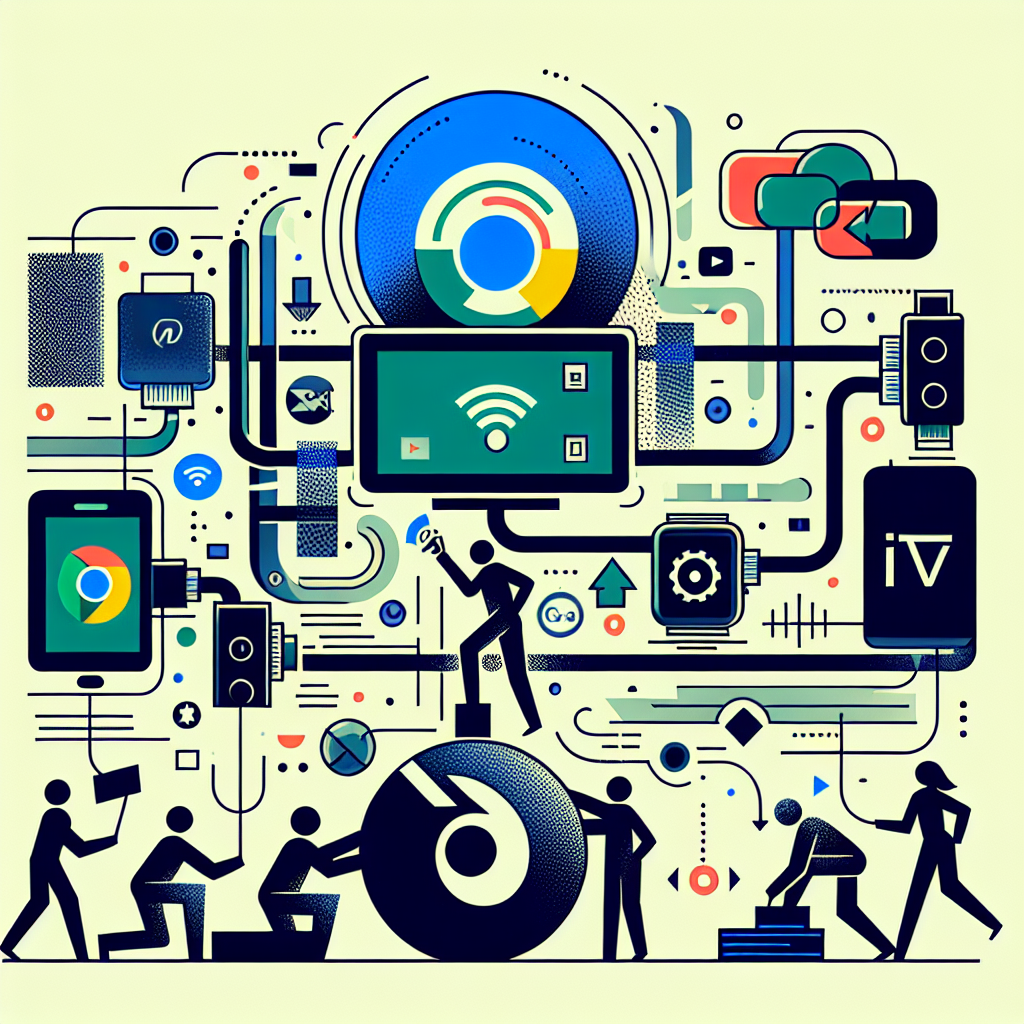
Chromecast is unique compared to devices like Firestick or Android TV boxes. Instead of installing IPTV apps directly on the device, Chromecast relies on your phone or computer to cast content.
In other words, Chromecast acts like a receiver. Your smartphone or laptop handles app processing, while Chromecast simply displays the video on your TV.
Advantages of Using Chromecast for IPTV
- Simple setup and affordable hardware
- No need for extra remotes if casting from your phone
- Wide compatibility with Android, iOS, Windows, and Mac
- Supports HD and 4K streaming depending on the model
Potential Limitations
- Not all IPTV apps support casting
- Phone or computer must remain active while streaming
- Network congestion may impact streaming quality
Best Apps to Use for IPTV Casting on Chromecast
To set up IPTV on Chromecast effectively, the biggest factor is choosing an IPTV app that supports built‑in casting. Some apps cast better than others, especially when streaming live channels that require stable connections.
Popular IPTV apps that support Chromecast casting include:
- TiviMate Companion (Android only)
- VLC Media Player (Android, iOS, Windows, Mac)
- GSE Smart IPTV (Android, iOS)
- IPTV Smarters Pro (Android, iOS)
- Web Video Caster (Android, iOS)
If you want more ideas for IPTV-friendly apps, you can explore the list of the best IPTV apps for Android in 2025, which includes detailed insights and recommendations for casting compatibility.
How to Set Up IPTV on Chromecast (Step-by-Step)
Now that you understand the basics, it’s time to walk through how to set up IPTV on Chromecast. These steps work for both Chromecast Ultra and standard Chromecast devices.
Step 1: Connect Your Chromecast to the TV
Plug your Chromecast into an HDMI port on your TV and connect the power cable. Ensure your TV is set to the correct HDMI input.
Step 2: Connect Chromecast to Wi-Fi
Using the Google Home app, connect your Chromecast to the same Wi‑Fi network as your phone or computer. This is required for casting to work.
Step 3: Install an IPTV Player App
Choose an IPTV app that supports casting. The easiest one for most users is IPTV Smarters Pro or GSE Smart IPTV. Install your chosen app on your phone, tablet, or computer.
Step 4: Add Your IPTV Playlist
Most IPTV services offer access via M3U link or Xtream Codes API. Enter these inside your IPTV player:
- Open the IPTV app
- Select “Add Playlist” or “Add User”
- Paste your M3U URL or enter Xtream API details
- Save and load your channel lineup
Step 5: Start Casting to Chromecast
Once channels load successfully, you can cast to Chromecast by following these steps:
- Open a live channel or VOD content
- Tap the Cast icon on your screen
- Select your Chromecast device
- Wait for the connection to complete
- Enjoy IPTV on your TV
Some apps require you to start the video before casting becomes available. If you don’t see the cast icon, check that:
- Your Chromecast is powered on
- Your phone and Chromecast are on the same Wi‑Fi network
- Your IPTV app supports casting
Alternative Method: Using Chromecast with Google TV
Google’s latest version of Chromecast includes Google TV, effectively turning it into a full Android TV device. This version allows you to install IPTV apps directly without casting.
How to Install IPTV Apps Directly
- Turn on Chromecast with Google TV
- Open Google Play Store
- Search for IPTV Smarters, TiviMate, or OTT Navigator
- Install your preferred IPTV app
- Log in with your IPTV provider details
This method is smoother and more reliable because it does not rely on your phone. If you want to compare Chromecast with other IPTV-friendly hardware, check the guide on the best devices for IPTV in 2025.
Optimizing IPTV Streaming Quality on Chromecast
Even after learning how to set up IPTV on Chromecast, you may want to optimize your experience to prevent buffering or pixelation. Here are tips to enhance performance.
Tip 1: Improve Your Wi‑Fi Signal
- Place your router in a central location
- Avoid placing Chromecast behind the TV in a corner
- Use a Wi‑Fi 5 or Wi‑Fi 6 router for better throughput
Tip 2: Adjust Player Settings
Inside your IPTV app, you may find settings for buffer size, video decoder, or stream quality. Try switching between hardware and software decoding if you experience issues.
Tip 3: Reduce Network Congestion
- Disconnect devices that aren’t in use
- Avoid downloading large files while streaming
- Use 5 GHz Wi‑Fi instead of 2.4 GHz if possible
Tip 4: Update Your IPTV App
App updates often fix bugs, improve casting stability, and add support for new codecs.
Troubleshooting IPTV Not Working on Chromecast
If IPTV is not casting properly to Chromecast, don’t worry—most issues are easy to solve. Below are the most common problems and how to fix them.
No Cast Icon Appears
This usually means your phone and Chromecast aren’t on the same Wi‑Fi network. Restarting your router or phone often resolves this.
Buffering or Stuttering Playback
- Lower stream quality in your IPTV player
- Move closer to the router
- Upgrade your internet speed if necessary
App Keeps Crashing When Casting
- Clear cache of the IPTV app
- Restart your phone or Chromecast
- Use a more stable app like VLC
Audio but No Video
This happens when your Chromecast does not support the video codec. Switching to software decoding inside your IPTV app usually fixes it.
Is Chromecast the Best Device for IPTV in 2025?
Chromecast is excellent for light IPTV use, travelers, and casual viewers. However, if you prefer a dedicated device where apps run natively, you might consider alternatives like Android TV boxes or Firestick.
To compare your options easily, explore the list of best Android TV boxes for IPTV, which outlines performance and app compatibility differences.
Safety and Legal Notes for IPTV Users in Canada
When figuring out how to set up IPTV on Chromecast, Canadian viewers should understand the legal environment around IPTV. IPTV technology itself is legal, but accessing unlicensed streams is not.
Always choose reputable IPTV providers that offer licensed content. Remember to protect your privacy using VPNs where appropriate, especially when streaming on public Wi‑Fi networks.
Frequently Asked Questions
Can I install IPTV apps directly on regular Chromecast?
No. Only Chromecast with Google TV supports installing apps. Regular Chromecast requires casting from another device.
Does Chromecast support IPTV multicast streams?
Most multicast streams require specialized routers. However, standard IPTV M3U streams typically work without issue.
Can I cast IPTV from an iPhone?
Yes, apps like GSE Smart IPTV and Web Video Caster support casting from iOS.
Do I need a VPN for IPTV?
A VPN can improve privacy and reduce throttling. However, choose a Canadian-friendly VPN with strong speeds for best results.
Final Thoughts: Mastering How to Set Up IPTV on Chromecast
Now that you know exactly how to set up IPTV on Chromecast, you’re ready to enjoy your channels on the big screen with minimal equipment and maximum convenience. The process is simple once you understand the right apps, the casting workflow, and the network conditions needed for smooth streaming.
Chromecast remains a solid IPTV option in 2025, especially for Canadian users who prefer flexibility and affordability. Whether you cast from a phone or install apps directly on Chromecast with Google TV, the experience can be highly reliable when configured correctly.
By following the steps and tips in this guide, you can confidently set up IPTV on Chromecast and enjoy high‑quality entertainment at home. And remember, mastering how to set up IPTV on Chromecast gives you access to a versatile and portable streaming method suitable for nearly any viewing environment.